Do you need to increase your word count?

Hope everyone is enjoying the holidays!

Feeling a bit stuffed? Now you need to write and write lots of words. 
Yes, it’s fun to relax and be with family, but now it’s time to get back on the horse and ride that WIP (work in progress) to the finish line. Or at least around the bend. 
Love, love those Amazon Black Friday deals too! 
But, now that you’ve finished your Black Friday shopping… 

How about a few tips to increase your word count? 

Then check out a post by Janice Hardy (link below). She gives us 3 ways to get the job done faster.

What I liked about her tips…

  1. Take a few minutes and make a list for each scene or chapter.
    • I’m a big list maker. This works better for me than outlines. Listing everything I want to accomplish in a scene gets my mind ticking and my fingers typing. Love this idea.
  2. Write a quick summary of what the POV character wants, and is trying to do.
    • I took a different approach with this tip. I looked at my list and made a quick (2-5 sentences) summary of each item.
  3. Remind yourself why a scene is important. Janice suggests you finish the sentence, I want to write this scene because…
    • Readers need to know is not a good reason. I liked this tip because it can avoid info dumps and bore the reader to death.

Get inspired, click on the link below and read Janice Hardy’s entire post. 

After you read her tips, which ones do you think will help you?

Do you have any tips to help me increase my word count?

Do you worry about word count? 

3 Ways to Boost Your Word Count Every Writing Session by Janice Hardy

I HOPE YOU’LL TAKE A MINUTE TO FOLLOW ME ON SOCIAL MEDIA, JUST CLICK ON THE BUTTONS BELOW. I’LL LEAVE A LIGHT ON.


Do you know the best app for writing?

Whether you are a planner or pantser, all writers need good tools of the trade.

Sometimes I get bogged down in trying new apps. I waste too much time learning the ins and outs of an app I hope will help, but often I’m disappointed. Not because the app doesn’t work, but because it doesn’t work for me.

So, instead of spinning your wheels, like a car stuck in a ditch, read reviews before you try a new writing app.

What writing apps do I use?

  • Scrivener
    • I love this program now, but there was a big learning curve for me. And although I’ve gotten the gist of it now, I still learn something new almost every day.
  • Grammarly Premium
    • This app is one of my favorites. The free app is good too, but I upgraded to premium because I love the extras. The app is easy, and the learning curve short. Oh, one other thing about this app. It automatically checks my posts and emails.
  • Ginger
    • A free app, Ginger is easy to load and easy to use. You can listen to your story, the app also suggests rephrasing of sentences (you can accept or reject suggestions.)
  • Canva
    • This is a terrific app to design covers, promo material, and illustrations for blog posts. Easy and quick to use.
  • Sumo Paint
    • This cool app works similar to Adobe Photoshop. Not as complicated as Adobe, and for a simple layered design it’s perfect. There are a lot of Youtube videos to help on the learning curve. It can be used straight off the website, not requiring a download.
  • Paint.net
    • I use this app for simple sizing and cropping of images/photos. Super easy, quick and free.

As with all writing apps, none are perfect. And at times they contradict each other. So always double-check any suggestions before you take them as gospel.

Now I’ve discovered a few more that sound interesting. Kathy Edens has some interesting apps that may help planners and pantsers alike.

Which apps do I plan on checking out next?

  • One Stop for Writers, by Writers Helping Writers
    • This isn’t exactly new to me as I follow WHWs and love their Thesaurus books, but I haven’t used One Stop yet. Don’t know why but I’m checking it out now.
  • Pro Writing Aid
    • I used this program a few years ago. The new and improved (since I used it) looks interesting, and a lot of writers seem to love it. So gotta go and see what all the hoopla is about.

To read more reviews about these apps, click and read Kathy Edens recommendations. She lists 9 apps for you to look at.

Writing App Reviews: A Comparison of the Best by Kathy Edens

Do you have a favorite app/programs?

Which ones do you use?

Have you tried any of these? Like or dislike which ones?

Inquiring minds want to know. Share your experiences in the comments. I can’t wait to read them.

And take a minute to follow me on social media, just click on the buttons below. I’ll leave a light on.


How to add personality to your characters

Eavesdrop like a pro.

I’ll admit I’m not very good at covertly listening in to other people conversations. Although there are times when it’s impossible not to hear. Sometimes it’s hard to talk to my dining companion because I’m transfixed by a loud couple at the next table. I want to whip out my tiny notebook and make notes. But, that would be a bit conspicuous. Don’t you think?

Why do I find eavesdropping awkward?

Because I grew up in a tiny house with lots of siblings and nosy parents. Privacy was a luxury. The only place to talk or read without others listening in was down by the creek. No mobile phones then so forget about a private conversation on the one kitchen phone. Even with a cord that reached all the way to the coat closet, someone was listening.


But if I want my characters to be real, to have different personalities I need to get away from my desk. Mingle, listen and yes, eavesdrop.

Today, I read a great article, published in The Writing Cooperative, about how to accidentally, on purpose, listen in on strangers.

How to Master Eavesdropping — You Know You Want To by Bryan Searing

What I learned from Bryan…

  1. There are two types of eavesdropping.
    • Sneaking around and spying, like my little sisters used to do.
    • Accidental-unintentional, as in overhearing conversations in a public place.
  2. Get away from the computer and mingle with people.
  3. Brian’s Rules to Master Intentional Accidental Eavesdropping

    • Be sensitive and respect privacy. Some people whisper in public, so don’t be rude.
    • Best places to eavesdrop is where there are lots of people.
    • Don’t stare! Act normal.
    • Where to sit or linger.

Be sure and read his entire article to get more details on how you can eavesdrop like a pro. I’m gonna work on my accidental eavesdropping skills and try not to blush or giggle. 

Tell me, do you eavesdrop in a crowd?

Have you gotten ideas for character by eavesdropping?

Did Bryan’s article give you any ideas?

Did the article change your mind about listening in to others conversations?

Write about your experiences in the comments. I can’t wait to read them.

And take a minute to follow me on social media, just click on the buttons below. I’ll leave a light on.


Get the dash right when you write

Not talking Morse Code.

Does the Hyphen, EN Dash, and EM Dash ever confuse you?

They have me. Thank goodness for editors who know the difference.

I wonder if I’ll ever remember everything I need to know about punctuation. Seems the more I read the more I need to read. Something like that. Joel Friedlander posted a great article about using dashes instead of commas and how we can get the placement mixed up.

What I learned about the right way to use these punctuations…

  1. That the dash is not based on the font size.
  2. The difference between a Hyphen, EN, and EM.
    • Hyphen is shortest
    • EN is shorter than EM
    • EM is the longest
  3. The three are not interchangeable.
  4. An editors shorthand for where to put them.
  5. And the short-cut keystrokes to insert them.
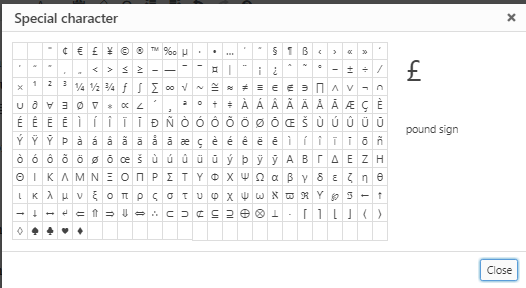
  6. Short-cut keystrokes are a quick way to insert special characters. Of course, you can always click on the Special Characters menu but I’m a big lover of shortcut keys when writing in Scrivener or MSWord.
  7. For blogs click on the Special Character in the WordPress Visual Editor.

  • This screen pops up and you can select whichever character you need.

  • The Hyphen key is easy. It’s on our keyboard.
  • The EN Dash shortcut for Scrivener or MSWord is Ctrl+Minus.  Looks a bit like a hyphen and is used to connect a range, for dates or pages. Often found in indexes.
  • The EM Dash shortcut for Scrivener or MSWord is Ctrl+Alt+Minus. The EM dash is for a pause or parenthesis with somewhat more emphasis than a comma and somewhat less than what parentheses imply.
    •  The Punctuation Guide states, “Most newspapers — and all that follow AP style — insert a space before and after the em dash.”
    • However, this may not be practical for fiction as it may result in a formatting nightmare—resulting in a line break where you may not want one.

To learn more, click and read Joel’s entire post.

Hyphens, Em Dashes, En Dashes—Everything You Need to Know BY 

Keep reading more info here.

How to insert special characters in WordPress.

Did any of this help clear up things for you?

Do you use EN or EM dash in your writing?

What do you think?

I really want to know so leave me a comment and talk dashes.

Also, if you can please stop by my other locations and say “hey!” I’ll leave a light on. 

facebook jeans page   twitter-jeans page icon  pinterest-jeans page  stumble-upon-jeans page   amazon jeans page

 OR CLICK THE “WRITE ME” TAB AND SEND ME AN EMAIL.