Did you know it only takes one?

One ISBN.

That’s right, one ISBN to print with IngramSpark and CreateSpace.

We all want our books available in as many places as possible but if the same paperback book has more than one ISBN, it can become confusing.

There is an order to this madness. And steps you can take to stay sane as you wade through the swamp of self-publishing.

  • First, purchase your ISBN number from Bowker.

Yes, it costs to buy your own ISBN but you retain more control. Consider buying in bulk rather than one at a time. I found it cheaper to go that route. The numbers never expire and they are yours to use for future books.

  • Second publish your book with IngramSpark (Lightening Source) first

This is very important. You must publish with them before CreateSpace.

  • Third, register log onto Bowker and register your book title which connects the ISBN to the publication.

Registering your book title is super important, don’t skip this step.

  • Last upload your book via Createspace. 

At the ISBN page, choose “provide own ISBN.”
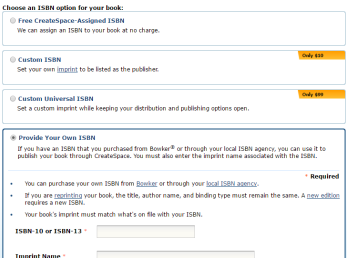
screenshot isbn

That’s it! Your book will now be available through both IngramSpark and Amazon.com (CreateSpace) but the book will have the same ISBN number.

Why is this important?

Whether your Aunt Tilly orders it from Amazon or your local library orders a copy through IngramSpark for their shelves, the ISBN is the same.

I’ve not decided it this is important for ebooks yet.

What do you think? Do you think it’s important to own the ISBN for ebooks as well as print books?

Talk to me, the lights on and comments are now open.

For more information about ISBNs click on the article at the bottom.

You can find me on Twitter @jeancogdell, Facebook at jean.cogdelland Amazon.com, stop by and say hey! Please remember to click and share this post with your Twitter peeps and Facebook fans.

And One ISBN Shall Bind Them…. by Amy Collins


Want to know which program to steer clear of?

KKBC, Kindle Kids’ Book Creator.

Well, that’s my opinion anyway.

Okay, I’ve told y’all many times how hard-headed I can be. So this post will come as no surprise, that even after reading the pros and cons of the new Kindle Kids’ Book Creator software, I still decided to give it a try. God I’m nuts!

To the readers which received an advance ecopy to review, I humbly apologize if you were unable to open the .mobi document.

I should have saved myself the trouble. Other than it being another software to use, trust me, it’s not worth the hassle.

screenshot_Thu_May_19_16.24.06

It’s a lot of hard work for little return. Kind of like eating crawdads. After dinner, you wonder why you didn’t just go ahead and order a damn lobster.

Okay, enough bellyaching. Here is why after the hard work, cussing, and crying I ended up with a product that is very limited.

  • I will have to publish another Kindle version through CreateSpace.

Why? Because Kindle Kids’ Book Creator files are huge and this limits the price you can charge for an ebook. Another thing it only allows certain devices to download the book. Yep, you heard right. Not all Kindle devices will be able to buy the book. That is why I will release another one through Createspace.

  • It took me 10 tries to get this small picture book to look right. Sigh. Can anyone say crawdads? 

I could’ve published a couple of ebooks in the time I wasted playing with this program.

Although I had queried, searched and read everything I could get my hands on about this program, still I went forward.

Never again. For the future, I will use PagePlus to design the book, produce it in a PDF with Nitro10, and load it straight to IngramSpark and Createspace.

Bottom line, this is a no go for me. I won’t be using KKBC again.


Talk to me, the lights on and comments are now open.

Go to the bottom of this post and see what other writers had to say about KKBC.

You can find me on Twitter @jeancogdell, Facebook at jean.cogdelland Amazon.com, stop by and say hey! Please remember to click and share this post with your Twitter peeps and Facebook fans.


KDP Kids: Kindle Kids Book Creator

The disappointment: 5 reasons I’m not using Kindle Kids’ Book Creator software anymore

Do you know how to size those pesky pictures?

If not maybe this will help.

Converting screenshots or other pictures to jpg’s or changing the DPI is so easy using a program called Paint.net.

Thought I’d share with y’all my steps.

For screenshots, I use a screen recorder called Icecream Apps. It’s a FREE download and super easy to use.

Select the picture or area of your computer screen you want to copy and select screenshot. Save. The program saves it as a .png. This is where I reach for one of my favorite programs, Paint.net.

This is where I reach for one of my favorite programs, Paint.net.

In your file folder, file folderfind the picture and right click to “open with” Paint.net. Once the picture opens, do a “save as” a Jpeg.

Next, you can manipulate the size and DPI of the picture.

Click on “Image” in the drop down menu. Select “Resize”


So tell me, are you more confused than ever? Or did this help any?

Talk to me, the lights on and comments are now open.

You can find me on Twitter @jeancogdell, Facebook at jean.cogdelland Amazon.com, stop by and say hey! Please remember to click and share this post with your Twitter peeps and Facebook fans.

How you can avoid my mistakes

And boy do I make a lot of them. Or so it seems.

I hope by sharing with you, these posts will stand as a reminder to myself, not to repeat the same mistakes over again.big mistakes

Why? Because mistakes are costly.

Mistakes cost when you have to do something over and over, not just in time but often in money too.

How you can avoid my mistakes…

  • Use the right software for the right job.

I tried to use “workaround” software but that only make the job harder and take longer. You know what I mean like using a shoe to hang a picture instead of hunting down that long-lost hammer in the garage.

  • A little investment is worth your time and sanity.

No one software does everything. Pick the one that works best for each task.

Listed at the bottom are some of the ones I discovered and love.

  • Don’t go with the hype.

Adobe Acrobat has been the go to forever. Gag. I bought Adobe Acrobat and went almost batshit crazy trying to get it to work like I wanted. Canceled my purchase, did more research, and bought Nitro10. Happy days!

  • Some free things are good.

Again with Adobe, people have sworn by Adobe Photoshop for years, forget about it. I have discovered a program that is cheaper and easier, in my opinion, to use called Sumo Paint.

Paint Net is a great program for sizing the DPI of your pictures and drawings. It’s free and super easy to use.

Canva.com is great for making a book cover. Although you may still have to change the DPI after it’s finished.

Do you have a software that has made publishing easier?

A favorite software you can’t live without?

Do tell…

Talk to me, the lights on and comments are now open.

Keep reading I’ve listed links to my favorite software must haves at the bottom of the page!

You can find me on Twitter @jeancogdell, Facebook at jean.cogdelland Amazon.com, stop by and say hey! Please remember to click and share this post with your Twitter peeps and Facebook fans.

Nitro Pro PDF Software for You

Nitro Pro has a monthly plan or yearly for $159. Worth every penny. Very user-friendly. And it offers a free trial periodInterfaces well with Word documents so if you can use Word you can use Nitro. 

Serif PagePlus X8 desktop publisher

I love this for formatting a picture book. My editor suggested I give the program a look and I’m so glad I did. Inserting and moving pictures around is so easy even I can do it. After done just publish to PDF and voila! Ready to submit to IngramSpark. There are later versions X9 and X10, but I bought X8 on sale for $39.99. I love a sale. Reg price is $119.

Sumo Paint Photoshopping in your browser

You can use this program online for FREE or upgrade to Sumo Paint Pro for $4.00 a month. This is an amazing photoshop program for almost nothing.  It’s easy to learn and there are several videos on YouTube to help.

Paint.NET a free image and photo editing software